CoachAccountable lets you connect your Virtual Meeting provider (Zoom, MS Teams, or Google Meet), so the system can automatically set up meeting links for your appointments.
However, if you are using another meeting or conferencing software or meeting your clients in person, you can use the Location and Description areas of the Appointment Type.
This helps your clients know where and how to connect with you for their appointments.
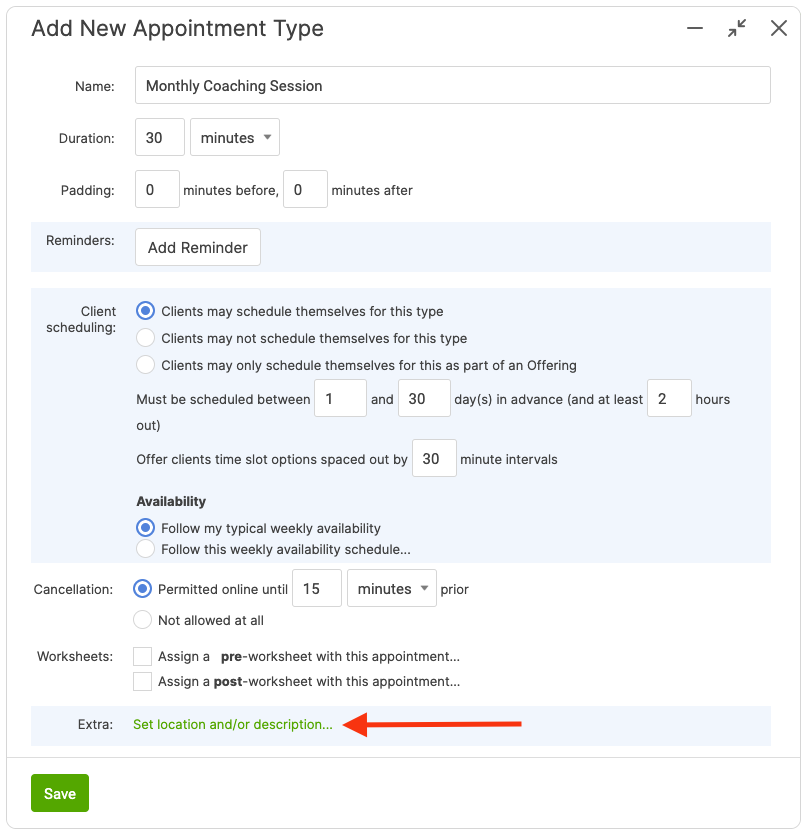
When adding or editing any Appointment Type, you’ll see the section “Extra:”, with clickable text to "Set location and/or description...":
Give it a click, and you’ll be presented with places to type in your extra information:
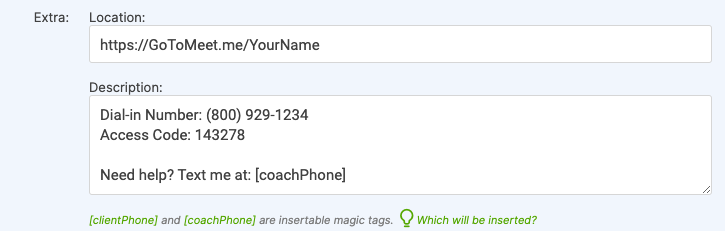
Once you've set this for a given Appointment Type, this information will prefill for any appointments of that type as they are scheduled.
Additionally, these details will be included in any Appointment Reminders, as well as in your synced calendar and the client's synced calendar.
To modify this information when you're scheduling an appointment (or even just give it a peek), you can by clicking the Modify location/description information… link:
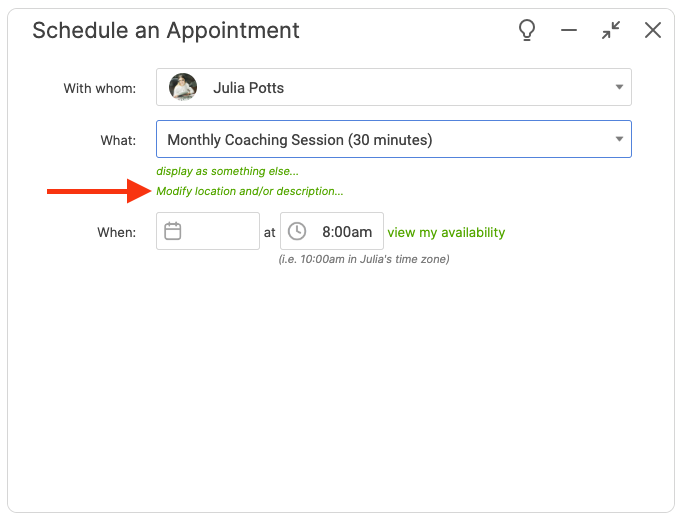
This is nice if, say, the dial-in information varies, or if you want to add a little note for your clients to see in their calendars.
Where to View Location and Description
Once the Location and Description are set, where can this be seen by the coach and the client?
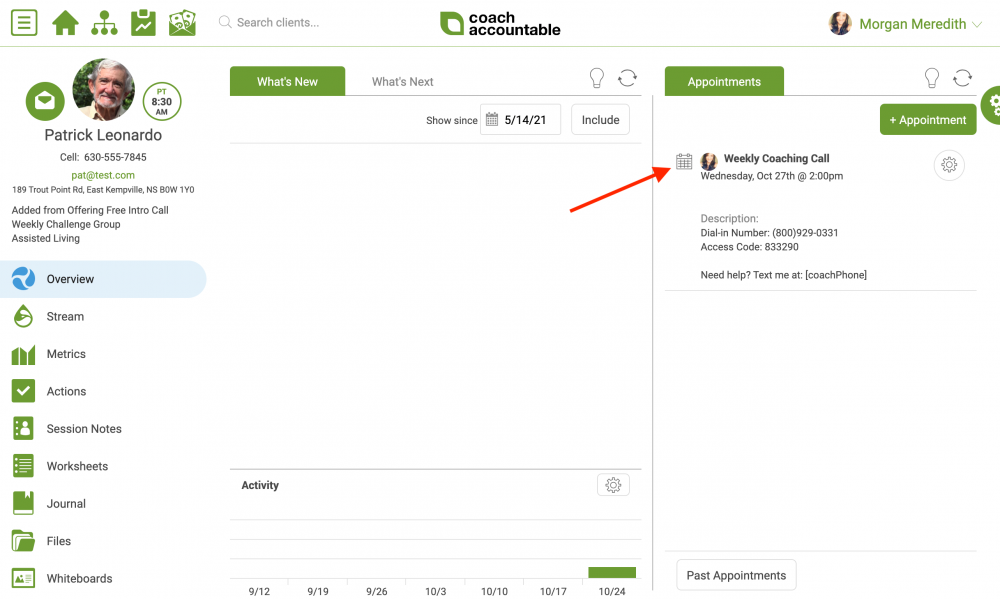
Coaches can see it in the Appointments tab on the Home Screen, by clicking the calendar icon next to the appointment:
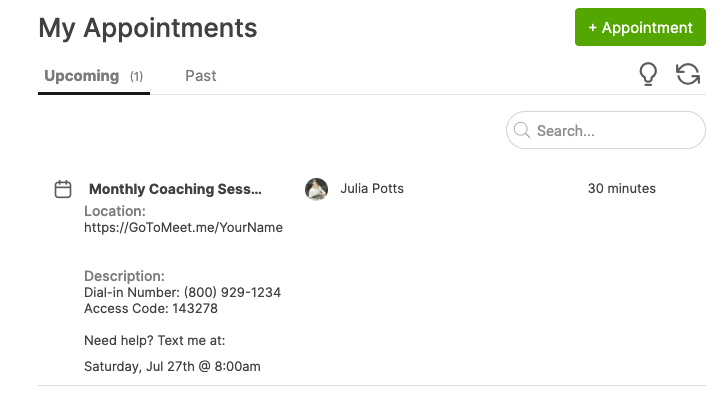
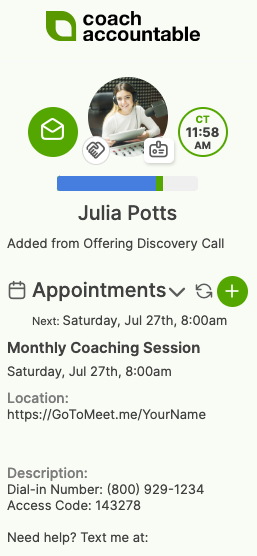
Coaches and clients can get details of appointments on the client's page by clicking the toggle arrow next to Appointments on the left-hand side:
But the real fun of this is having this information appear right in your calendar system of choice, provided you’ve set up the one-time sync to make your CoachAccountable appointments appear there.
And there you have it! You can put key location and descriptive information in your appointment types if it’s standard and consistent, customize it when scheduling specific appointments, and ultimately have this information appear automatically in your and your client’s calendars.