CoachAccountable allows you to create and send invoices to your clients, as well as receipts. Head to your Business Center >> Setup >> Invoicing Config to set your:
- Currency or Currencies
- Payment Processor (Stripe, Square, or PayPal)
- Unpaid Handling preferences
- Other Miscellaneous bits
Once things are set up, you can see and manage your client invoicing in Business Center >> Invoicing, which is broken into several sections.
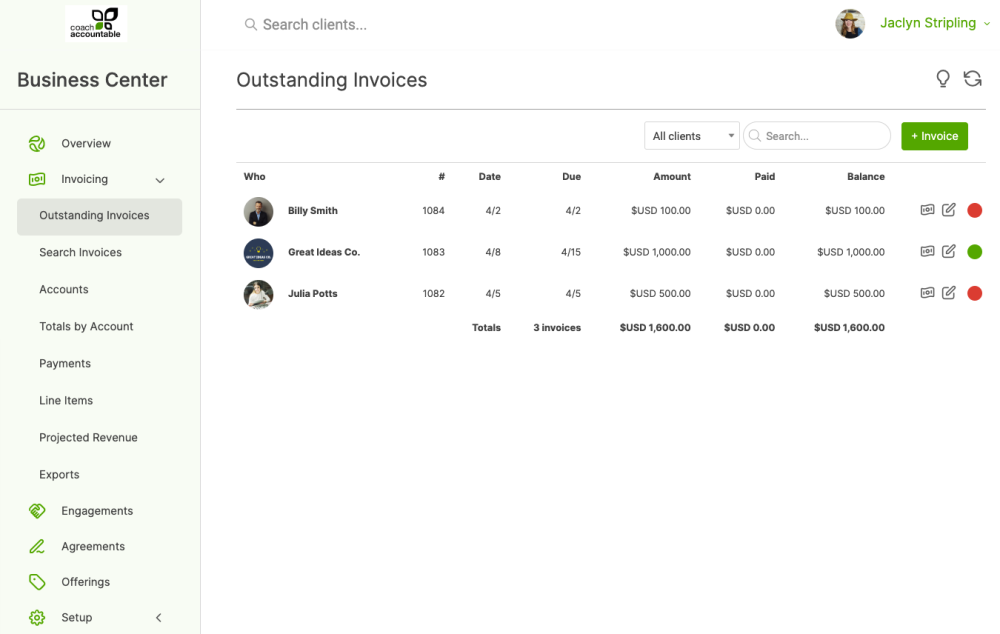
Outstanding Invoices
Here, you can create a new invoice, schedule future invoices, resend invoices, record payments, and search for outstanding invoices, filtering by your clients.
Search Invoices
Here you can search for an invoice by client name or by invoice number. Narrow your search by specifying a date range, and click the gear icon to decide whether to include inactive clients. Click the search button to get your results.
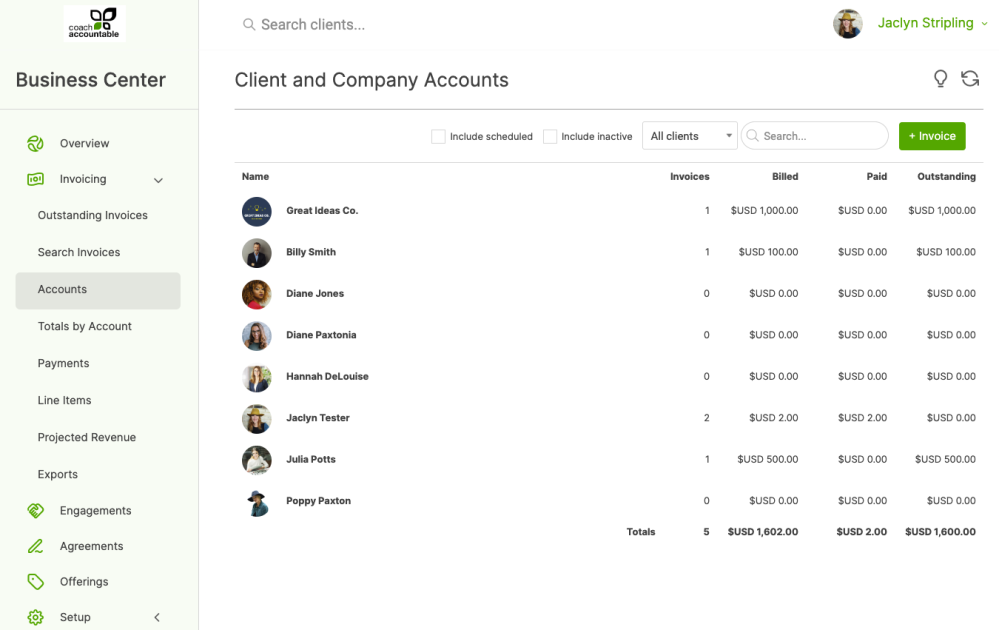
Accounts
The Accounts tab shows a summary of your client invoices, including the total billed, total paid, and outstanding amounts. Note that you'll see both individual clients and Company accounts here.
Click on each column header to sort clients. You can also create invoices here by clicking the +Invoice button.
Reports
There are several reports to help you track invoicing. These can be filtered by date range for all clients or a particular client. You can also include inactive clients, if fitting. All of these reports can be downloaded as CSV files.
You can also do a complete Export, which is handy for your accountant or to import into your accounting software of choice.
Recurring Invoices
If you're looking to create a series of recurring invoices, split payments over time, or process payments automatically, you'll want to use Engagements.