Once you navigate to your Courses area (Home >> Courses), you'll find several tools created to help you manage and organize each one.
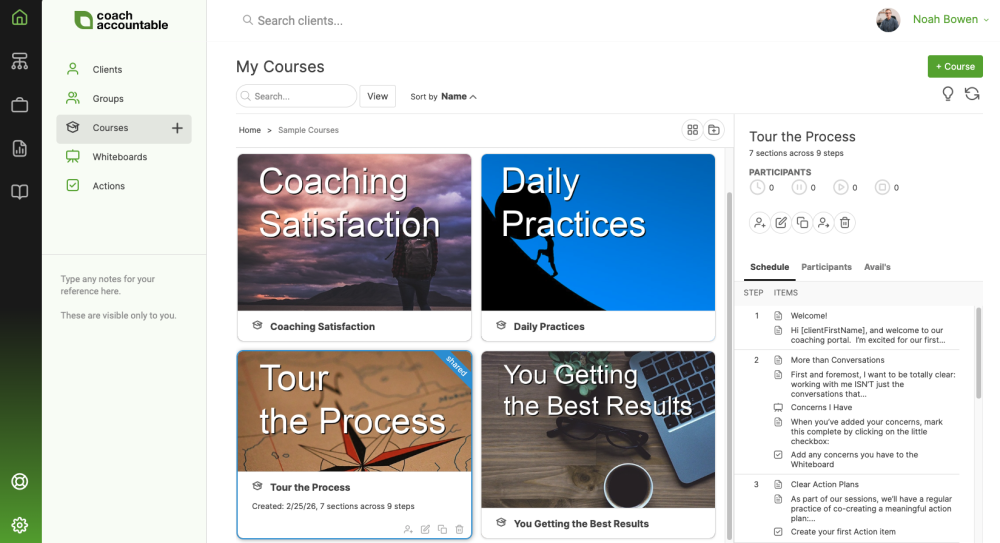
Folder Organization
Like other collections throughout the system, you'll find that you can organize your courses into a collection of folders. Read more about managing folders.
Viewing Details and Key Controls
Simply click on a Course card to load its details in the right panel. In this right panel display you'll see a number of things:
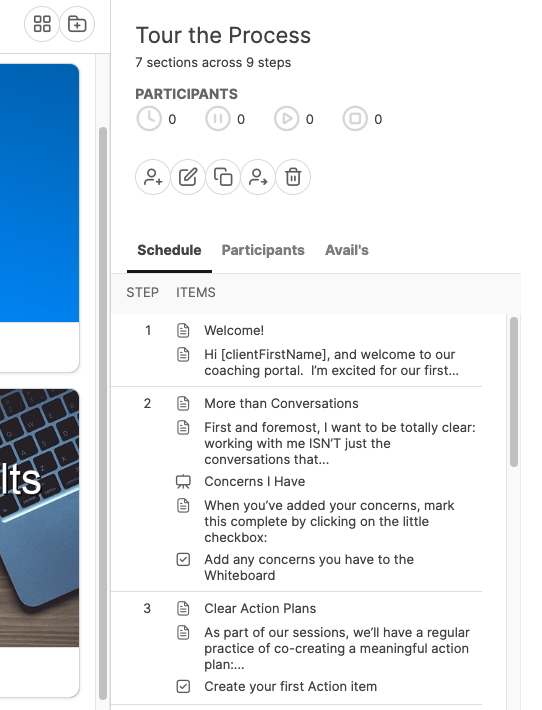
The "Participants" summary at the top tells you how many clients are currently scheduled, paused, actively participating, and completed with your Course.
The row of buttons below provide the following controls:
- Add participants to your course
- Edit course to view and modify content and settings
- Clone course
- Reassign ownership (if using a Team Account)
- Delete course
Tip: Double-clicking on a Course card will also take you to that Course's Course Builder page.
Beneath this row of buttons, you'll find the tabbed display of the Course Schedule, Course Participants, and a list of which clients this Course is merely available for. Read more about Course Availabilities.