Journal Entries offer a space for expression for both you and your clients.
Unlike Session Notes, Journal Entries can be written by either coach or client.
Unlike Whiteboards, Journal Entries are not assigned, but rather instead freely composed whenever with no due date.
Journal Entries are a great place to capture wins and accomplishments, or as a starting point for conversation regarding the coaching relationship: areas of struggle, ideas worth exploring, goal-setting, etc.
Introspective writing in general is a useful practice in itself, so you might let your clients know or even encourage them to journal regularly.
Journal Entries can either be shared with the other party (written by coach and visible to client, or vice-versa), OR marked private, for the eyes of the author only.
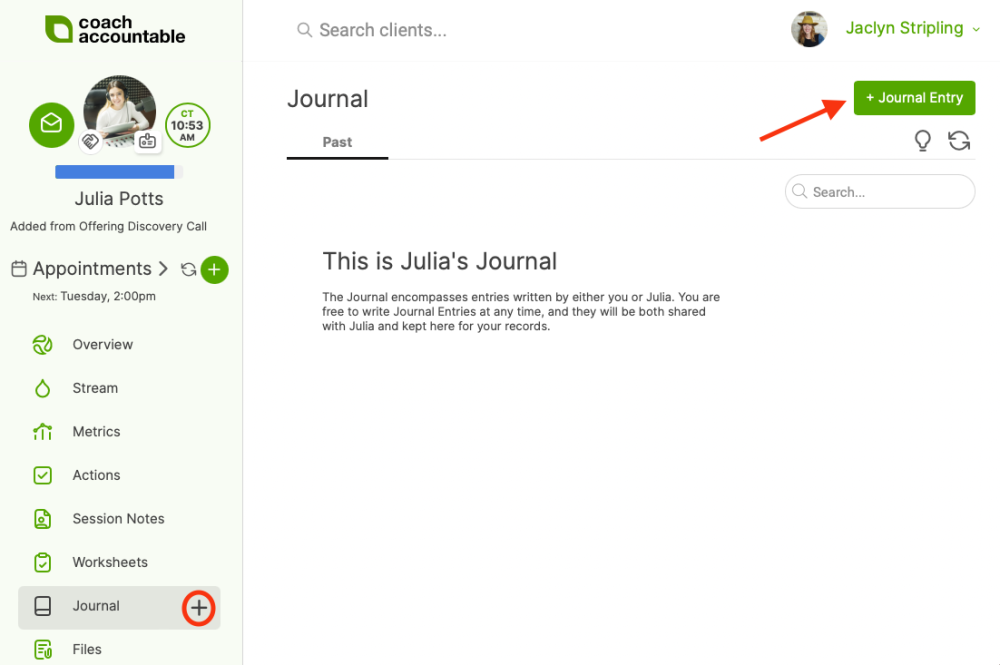
Create a Journal Entry by going to a client's Client Page, then clicking on the plus sign next to the Journal tab, or by clicking + Journal Entry.
From here, you can create your Journal Entry using a WYSIWYG editor. Using the toolbar at the top, you can insert an image from the Image Gallery and embed media from your Library Files or elsewhere on the web.
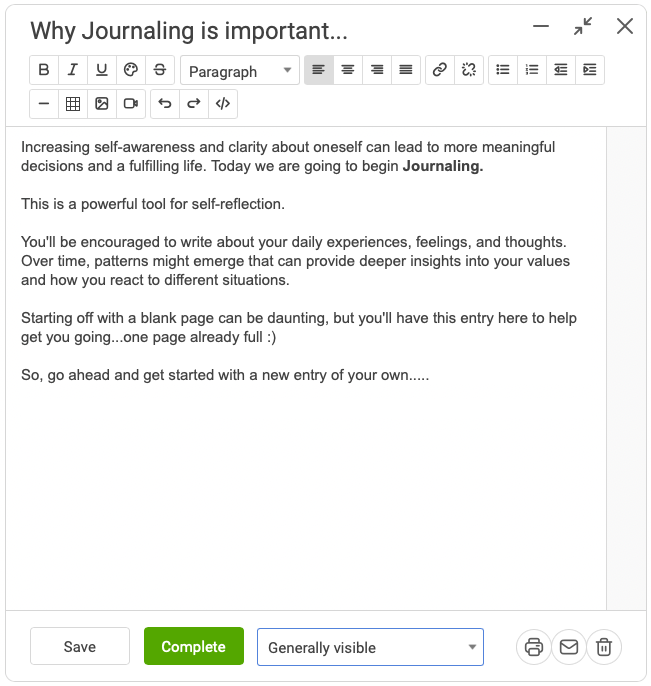
Visibility Settings for Journal Entries
Just right of the "Save" and "Complete" buttons, you'll see a dropdown menu for setting the visibility of the Journal Entry.
These follow the usual visibility settings for items.
Default Visibility of Journal Entries
For you as coach, CA will pre-select the value to match whatever visibility setting you choose for the Journal Entry you most recently completed (and "Generally visible" when it's your first). So if it's your style to have those all private, for example, you'll only need to manually choose "Private, for my eyes only" the first time.
Saving and Completing
Click Save to save your work as a mere draft of your work. Click Complete to have the Journal Entry appear in the Stream and in the Journal Entries >> Past listing.
Note that mere drafts are considered incomplete work and thus NOT fitting for sharing with your clients, so in order for your client to see it, you will need to mark the Journal Entry complete first (and of course have a suitable visibility setting chosen).
Unmarking a Journal Entry Complete
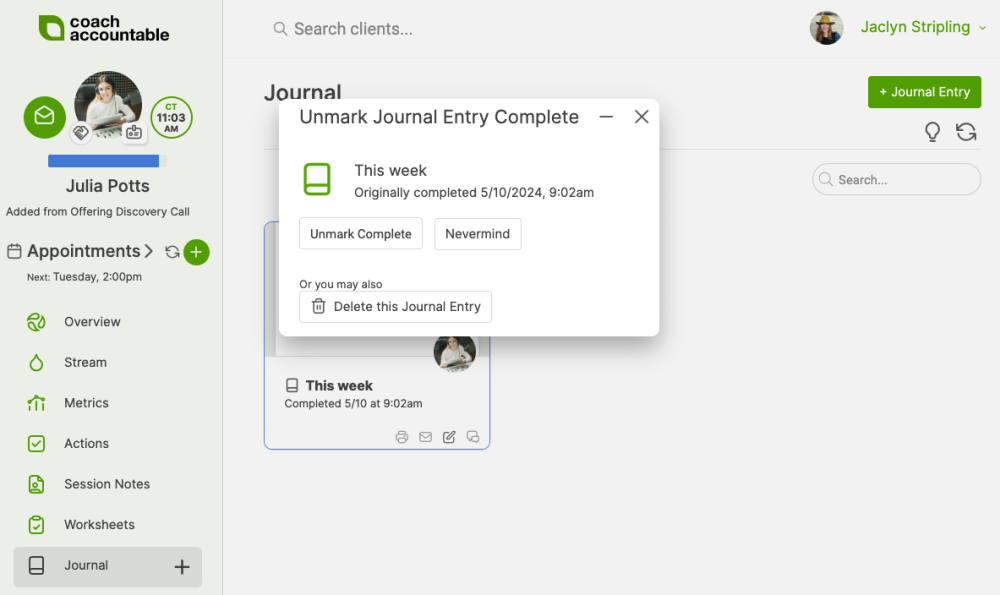
If you see a Journal Entry of one of your clients that you would like to encourage your client to work on further, you can unmark it complete for them.
Do this by clicking the edit icon on any completed Journal Entry: