In general, you can set the Page Arrangement for clients to turn on or off certain functionality, and to modify the order of the various sections your clients will see.
Sometimes it's appropriate to automatically set a custom Page Arrangement for new clients based on the particular product they signed up for.
For example, if you offer a bare-bones self-paced Course as an entry program for lower-paying clients, it may be fitting for those clients to have Session Notes, Journals, and Whiteboards all turned off at the start.
You can specify a specific Page Arrangement for just those people that sign up for a particular Offering. Simply tick the box, then click the eyeball icon for any item to toggle it on/off. You can also drag-and-drop to modify the sort order.
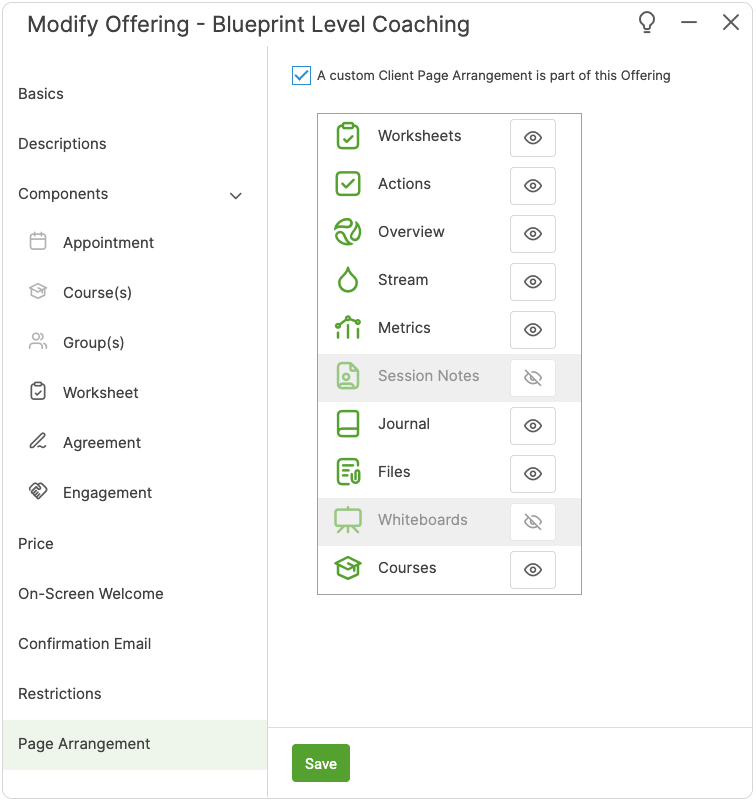
You can set a different Page Arrangement for each Offering you have, and whichever Offering a new client chooses will determine their initial Page Arrangement. If a custom arrangement is not set for a given Offering, clients will default to your default Page Arrangement.
Keep in mind that you can also change these on a per-individual basis at any time: Page Arrangements set in this way are simply the starting point for those who sign up via a particular Offering.